


Understanding Your Reconcile Screen
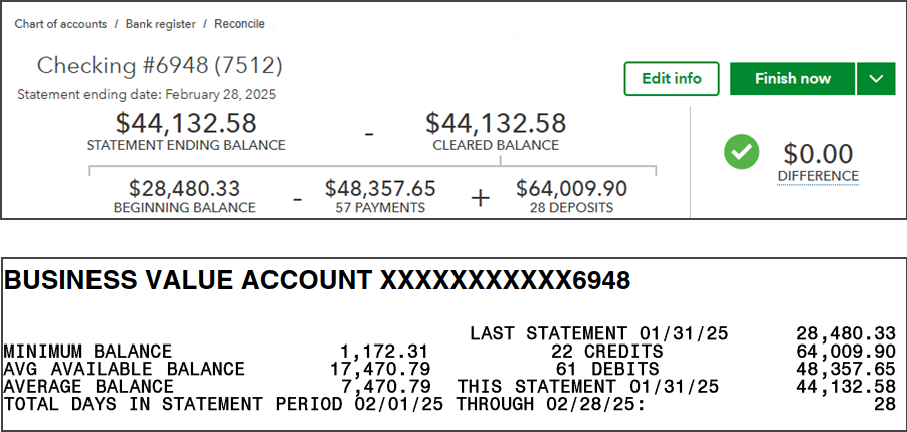
The top of your reconciliation screen mirrors the summary area of your bank or credit card statement. You’ll see your Beginning Balance, which is simply last month’s Ending Balance, along with the Ending Balance and Statement Ending Date you entered on the previous screen. On a balanced reconciliation like the one below, the Payments total in QBO will match the Debits on your statement, and the Deposits total in QBO will match the Credits.
It all comes down to one formula: Starting Balance + Deposits – Debits = Ending Balance. If your numbers match your statement at every point in that equation, you’re in good shape. If they don’t, that’s where the troubleshooting begins.
When Your Reconciliation Won’t Balance, Work Through These Steps
- Check for typos first. The most common culprit is a simple data entry error on the previous screen. Double check that your ending balance and ending date exactly match the information from your statement. If not, then just click Edit Info in the top right corner and make the correction. If that doesn’t fix the problem, move to the next step.
- Isolate the problem section. Compare both your Payments total and Deposits total to the totals on your statement. If your Payments are off, the problem is in your money-out transactions. If your Deposits are off, it’s in your money-in. Sometimes both will be off, which means there are at least two issues to locate. Do the math to determine the amount that the sections are off. Best cas scenario, that amount corresponds to one transaction that’s easy to identify.
- Dig into the details. Once you know which column is causing the problem, there are several ways to narrow down the search. You can use the Payments and Deposits buttons mid-screen to view only the transactions from that section. You can then sort those transactions by Cleared Date or Amount to analyze the activity against your statement. This is where most people realize they’re in over their head, and that’s completely understandable. Give it a try anyway. Sometimes the answer is right in front of you!
- When all else fails, there’s a last resort. When in doubt, start from scratch. In the All transactions view, click the circle button in the far right of the transaction header to Select All transactions. Then click it one more time to Unselect All transactions. This will allow you to start from scratch and check the transactions off one at a time as you go down your statement. This will give you a successful reconciliation 99.9% of the time, but it can be time consuming so that’s why I save it for the last step.
- Whatever you do, don’t force it. If you can’t get to Zero Difference, do not click Finish Now just to move forward. A forced reconciliation is a signal that something is wrong with your data, whether it’s a duplicate transaction, a missing one, or something else entirely. Every month you continue forward without fixing it compounds the problem. And if someone has to come back later to clean it up, they’ll have to undo every reconciliation back to the point where things went wrong. It’s a much bigger job than it needs to be. This is the point when you want to ask for help from an expert.
These are the steps that my team and I take whenever a reconciliation is not balanced. The Bank Feed connection is not mistake-proof and I’ve seen many situations where transactions weren’t downloaded or were downloaded twice. While handy, the bank feed isn’t error-proof and successfully reconciling your accounts each month to match your statements is the only way to ensure that all transactions are in your books and the amounts are correct.
There are situations where even the above steps don’t uncover the issue and it then takes a trained eye to dig into the details to find the real problem. If you’re having this issue and can’t get it resolved, book an Ask Dena Anything! appointment so I can help you move past this roadblock.